Network Map
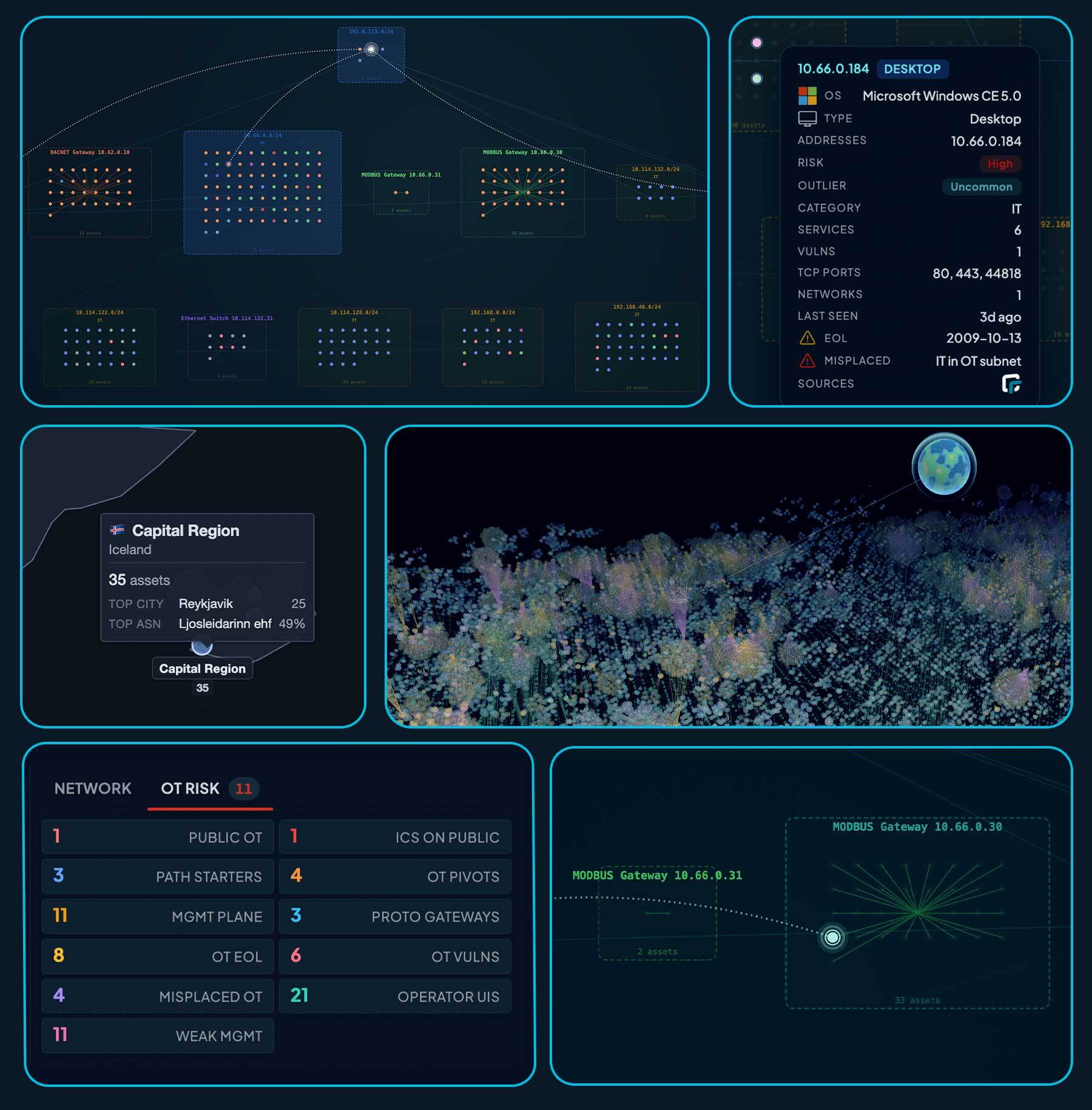
The Network Map is an interactive Layer-2 / Layer-3 topology of every asset in the current scope. Where the World Map shows assets by physical location, the Network Map shows logical relationships: which subnets contain which assets, which gateways and switches connect them, and which assets pivot between subnets.
The map has two modes, a 2D Canvas view and a 3D rotating globe, that share the same data, search syntax, and trace engine.
Accessing the map
You can open the Network Map from several places in the console:
- In the Inventory grid, asset rows show a small map icon when the asset has L2/L3 data. Click the icon to open the map filtered to that asset.
- In Inventory search, the “View on map” action above the inventory grid opens the map with the current inventory search applied as the map filter.
- In Asset details, the Manage menu offers View on network map (or Back to network map if you arrived from the map). The same menu offers View internet attack path, which pre-loads a trace from the public internet to the selected asset.
- In Reports, open it directly at
/reports/network/mapfrom the Reports menu, or at https://console.runzero.com/reports/network/map. - In Queries, saved query rows in the queries grid include a “View on network map” action that prefills the map with the saved query.
When you open the map from another page, runZero records the previous URL as a return target. A Back button in the top-left returns you to that exact view, with your filters and pagination preserved.
2D and 3D modes
- The 2D Network Map (
/reports/network/map) is a Canvas-rendered topology with the full feature set: hop-filter trace, choke-point analysis, multi-tab Network Intel card, search results panel, and exports. - The 3D Network Map (
/reports/network/map/3d) is a rotating spherical layout that uses the same data, search syntax, and Source / Target trace engine. It is useful for executive views and demos.
To switch modes, use the 2D / 3D button in the toolbar. Your filter, search, and trace state survive the switch.
Subnet layout
The map groups assets into rectangular subnet clusters. Each subnet box contains the assets that have at least one address in that CIDR range, along with any unaddressed (MAC-only) endpoints linked into the subnet by L2 evidence.
Subnet mask
The toolbar mask selector controls how the map aggregates IPv4 addresses into subnets:
- /24 (default) puts each
/24in a separate cluster. - /16 collapses related
/24s into the same/16parent. - /15 through /8 give broader rollups, useful for large flat networks.
A separate selector controls the IPv6 mask, which defaults to /56 and ranges from /32 to /64 in steps of 4.
When a scanned subnet overlaps a configured site subnet, the map uses the configured CIDR directly. Otherwise it applies the chosen mask to the asset’s address to derive a synthetic subnet boundary.
Multi-homed assets
An asset with IP addresses in more than one subnet appears once in each subnet it belongs to. The renderer draws an L3 link between the copies to show that the asset bridges those segments. Every copy shares the same asset ID, so clicking any copy opens the same asset detail panel, but each copy has its own position so trace paths through the asset stay visually unambiguous.
The Network Intel card counts multi-homed assets as Pivots (multi_homed:t).
Public Internet node
A virtual Public Internet node is pinned at the top of the layout. Public IP subnets observed during scanning attach to it, and the trace engine accepts it as a source or target for ingress and egress path analysis (see Tracing paths).
By default the map filters out widely-reused public IPs (for example public DNS resolvers like 1.1.1.1 or 8.8.8.8) that show up on many internal assets and would otherwise produce misleading internet edges. You can change the threshold in the Trace panel’s expanded view.
Network Intel card
The Network Intel card on the left rail is a clickable stats grid. Each cell shows a derived count for the current view. Click a cell to seed the map’s search bar with the matching query and re-run the filter.
| Cell | What it counts | Click query |
|---|---|---|
| Assets | Total assets in view | (display only) |
| Subnets | Distinct subnets observed | (display only) |
| High Risk | Assets with high or critical risk | risk:high OR risk:critical |
| EOL | Assets running an end-of-life OS | eol:t |
| Pivots | Multi-homed assets bridging two or more subnets | multi_homed:t |
| Public | Assets with at least one public IP | has_public:t |
| Misplaced | Assets whose category does not match their subnet’s classification | misplaced:t |
| Outliers | Assets that are distinct from their neighbors’ norm | outlier_rank:>1 |
| Gateways | Protocol gateways bridging IP and non-IP networks | is:gateway |
| Switches | Managed switches that share neighbor information | is:switch |
The card also includes a device-type legend; clicking a legend cell runs the equivalent type: or category: query.
OT Risk tab
When the current view contains OT-scoped assets, an OT Risk tab appears alongside Network. It is a grid of one-click investigations driven by the OT risk register. Each card runs a query against the visible map and shows the result count; click a card to filter the map and the inventory below.
| Card | What it surfaces |
|---|---|
| Public OT | OT-scoped assets reachable from the public internet (ot_scope:t AND has_public:t) |
| ICS on Public | Native ICS protocols (Modbus, EtherNet/IP, DNP3, BACnet, S7, OPC UA, IEC-104, KNX, …) on a public IP |
| Path Starters | Internet-facing management / lateral-movement services (RDP, SMB, SSH, WinRM, VNC, Telnet, VPN, IPMI) |
| OT Pivots | OT-scoped assets that are multi-homed across subnets (ot_scope:t AND multi_homed:t) |
| Mgmt Plane | OT-scoped management-plane services (SSH, RDP, SMB, WinRM, VNC, Telnet, IPMI, BMC, KVM) |
| Proto Gateways | Protocol gateways bridging IP topology to BACnet, EtherNet/IP, Modbus, KNXnet/IP, C37.118, … |
| SIS Candidates | Hardware suggesting Safety Instrumented Systems (Triconex / HIMA / ProSafe) |
| OT EOL | OT-scoped assets on an end-of-life OS or firmware |
| OT Vulns | OT-scoped assets with high or critical risk |
| Misplaced OT | OT in a non-OT subnet, or non-OT in an OT subnet (segmentation gaps) |
| Operator UIs | OT-scoped HMIs, Panel PCs, engineering workstations, operator desktops, thin clients |
| Weak Mgmt | OT-scoped Telnet, FTP, VNC, TFTP, SNMPv1/v2c: cleartext or unauthenticated management |
runZero computes OT scoping from the asset’s category, the subnet classification, and a small device-type veto list (a Schneider UPS with a stale category:OT tag is not OT-scoped).
Search
The search bar accepts a domain-specific query language with keyword filters, free text, boolean operators (AND, OR, NOT), parentheses, and * wildcards. Bare text matches across all fields.
192.168.1                              # free-text match
name:web-server                        # keyword
type:server AND os:Linux               # boolean
NOT net:10.0.0.0/8                     # negation
(name:PC AND type:server) OR os:Windows
multi_homed:t AND has_public:t
type:Server AND geo:30.27,-97.74,25km
Identity, address, and platform
| Keyword | Aliases | Matches |
|---|---|---|
id |
Node or asset ID | |
address |
addr, addresses, ip, host |
IP address(es) |
name |
names, hostname, hostnames |
Hostname(s) |
net |
cidr |
Subnet / network CIDR |
type |
Device type (Server, Desktop, Switch, IP Camera, …) | |
os |
Operating system | |
os_version |
osversion |
OS version |
hw |
hardware |
Hardware model |
category |
categories |
Asset category (IT, OT, IoT) |
subnet_class |
net_class |
Subnet classification (OT, IoT, General) |
ot_scope |
OT-scoped (t / f), derived from category + subnet + vetoes |
|
functions |
function |
Asset function tags |
vendor |
mac_vendor, newest_mac_vendor |
Newest MAC vendor |
tag |
tags |
Asset tags |
domain |
domains |
DNS domains |
site |
site_name, site_id |
Site |
explorer |
agent, last_agent_id |
Last Explorer (UUID prefix) |
task |
last_task_id |
Last task (UUID prefix) |
detected_by |
det |
Detection method (arp, icmp, ndp, …) |
Boolean / flag fields
| Keyword | Matches |
|---|---|
multi_homed |
Asset has addresses in multiple subnets (t / f) |
has_public |
Asset has a public IP |
has_private |
Asset has a private IP |
has_ipv4 |
Asset has at least one IPv4 address |
has_ipv6 |
Asset has at least one IPv6 address |
has_link_local |
Asset has a link-local address |
has_mac |
Asset has MAC address data |
has_os, has_hw, has_name, has_type |
Asset has the named field populated |
eol |
Asset is end-of-life (t / f) |
misplaced |
Asset’s category does not match its subnet’s classification |
unmapped_mac |
Node is an unmapped-MAC stub from a switch port |
is |
Topology role: switch, gateway, child (sub-asset behind a gateway) |
gateway |
Legacy alias: t / f for any gateway, or a specific kind. Prefer is:gateway / is:switch |
Numeric fields
All numeric fields support comparisons (>, <, >=, <=, ranges).
| Keyword | Matches |
|---|---|
risk_rank |
Numeric risk rank (0-4+) |
outlier_rank |
Outlier score rank (0-4+) |
criticality |
Criticality rank |
modified_risk_rank |
Modified risk rank (0 = unmodified) |
vulnerability_count |
Number of known vulnerabilities |
software_count |
Number of detected software packages |
service_count |
Number of detected services |
mac_count |
Number of MAC addresses |
address_count |
Number of IP addresses |
name_count |
Number of hostnames |
service_ports_tcp |
TCP port numbers (service_ports_tcp:443, service_ports_tcp:>1024) |
service_ports_udp |
UDP port numbers |
rtt, lowest_rtt |
Lowest round-trip time in microseconds |
hops, ttl |
Lowest TTL / hop count |
newest_mac_age |
Newest MAC age in seconds |
Services and software
| Keyword | Matches |
|---|---|
service_protocols |
Service protocols (http, ssh, tls, modbus, bacnet, …) |
service_products |
Service product names (Apache*, nginx, OpenSSH*) |
protocol |
Convenience alias for service_protocols |
product |
Convenience alias for service_products |
Time
first_seen (alias firstseen) and last_seen (alias lastseen) accept relative ranges like <7days, >24hours, <30days, or absolute timestamps like >2026-01-01.
Risk
| Keyword | Matches |
|---|---|
risk |
Risk level label (Critical, High, Medium, Low, None) |
Node and gateway types
| Keyword | Matches |
|---|---|
node_type |
Graph node type: a=asset, n=subnet, u=unaddressed, g=gateway, m=unmapped MAC, r=router hop |
class |
Object class: asset, subnet, gateway, unaddressed, unmapped-mac, router-hop, plus device-type aliases (switch, firewall, …) |
gateway_kind |
Gateway protocol kind: switch, bacnet, modbus, cip, knxnet, s7comm, dnp3, profinet, ethercat, omronfins, melsecq, hartip, c37118 |
child_kind |
Asset is a sub-asset behind a gateway of the given kind (same vocabulary as gateway_kind) |
downlink_count |
Number of downstream links (switch ports + OT gateway children). Supports comparisons (>5, <=0, >=10) |
hops_from_public |
Minimum topology hops to a public-facing asset (0 = the asset itself is public-facing). Supports comparisons |
switch_port |
Switch port observation on an unmapped-MAC stub (e.g. Gi1/0/1) |
Geographic search
| Keyword | Aliases | Matches |
|---|---|---|
geo |
geo_within, geo_radius |
Distance: geo:<lat>,<lon>[,<radius>] (km, mi, m, default 50km) |
country |
ISO country code | |
city |
City | |
state |
subdivision |
State / subdivision |
continent |
Continent | |
postal_code |
postal |
Postal code |
timezone |
Timezone (America/Los_Angeles) |
|
asn |
isp |
ASN ID or network owner |
geo_source |
Source of the geo point (isp, cloud-region, attribute-ip, …) |
See Geolocation for how runZero produces these values.
Tracing paths
The Network Map’s trace engine answers “how does traffic get from A to B?” by computing shortest paths through the rendered topology. The Trace panel at the top of the map controls every aspect of the trace.
Sources and targets
A trace needs at least one of:
- One or more Sources, the start of the path.
- One or more Targets, the end of the path.
You can supply sources and targets in three ways:
- Right-click any node on the map and choose Add as Source or Add as Target.
- Type a query into the search bar, then click Set Query As Sources or Set Query As Targets in the trace panel. Every node matching the query becomes a source or target.
- From asset details, use the View internet attack path action, which pre-loads
Public Internetas the source and the asset as the target.
The same selection methods work in 2D and 3D.
Trace modes
The button in the trace panel changes its label to match what you have set:
| Sources set | Targets set | Mode label | Behavior |
|---|---|---|---|
| Yes | Yes | Trace Path | Shortest paths between every source and every target. |
| Yes | No | Trace Outbound | All paths reachable outward from the sources. |
| No | Yes | Trace Inbound | All paths converging on the targets from the rest of the graph. |
Trace from the internet
To answer “what can reach this asset from the public internet?”, set Public Internet as the source (right-click the public internet node and choose Add as Source) and the asset of interest as the target, then click Trace Path. The asset details page View internet attack path action does this in one click.
To answer “what does this server expose to the internet?”, reverse it: set the asset as the source and Public Internet as the target.
IP version routing
The trace engine respects two IP-version toggles in the panel’s expanded view:
- Route IPv4 includes IPv4 paths in the trace (default on).
- Route IPv6 includes IPv6 paths in the trace (default on).
Two more toggles control IPv6 visibility on the canvas itself, independent of routing:
- Show IPv6 link-local renders
fe80::/10addresses (default on). - Show IPv6 global renders global unicast
2000::/3addresses (default on).
Widely-reused public IP filter
By default the trace ignores public subnet nodes linked to more than 5 distinct internal assets. This removes misleading edges from shared resolvers (1.1.1.1, 8.8.8.8) and content-delivery anycast addresses. You can change the threshold in the trace panel.
The Trace panel and per-hop filters
The collapsed trace panel shows the current Sources, Targets, and the trace button. Click the ▾ chevron to expand it and reveal the per-hop filter grid and the routing toggles described above.
Per-hop filters
With the hop-filter grid, you can specify an exact attack path, hop by hop. Each row is one hop from the source and has two inputs:
- Include allows only nodes matching this query at this hop.
- Exclude removes nodes matching this query from this hop.
The inputs accept the full search query language described above, and the panel shows the live match count next to each input as you type.
These filters reduce the source-to-target paths to just the hops that satisfy the constraints. They are subtractive: they cannot add a path that does not already exist in the graph, but they can carve a much smaller subset out of a noisy trace.
Examples:
- To force the path to pivot through SSH, put
service_protocols:sshin the Hop 1 row’s Include input. - To exclude known firewalls and routers, put
type:Firewall OR type:Routerin the Hop 1 row’s Exclude input. - To reach OT through a specific HMI, put
type:HMI AND name:hmi-prod-*in the Hop 2 row’s Include input. - To find paths that cross a multi-homed pivot, put
multi_homed:tin the Hop 1 row’s Include input. - To eliminate a specific subnet from consideration, put
net:10.50.0.0/16in any hop’s Exclude input.
Filters apply hop by hop, counting from the source side. A trace with all four hop filters empty is the unconstrained shortest path; adding any include or exclude carves the result set without re-running the search server-side.
What each hop row constrains
The hop index refers to the node’s position along the traced path, counting from the source:
| Filter | Applies to | Typical use |
|---|---|---|
| Hop 0 | The source node(s) themselves; hop 0 is “0 hops from the start” | Restrict which matched sources are used, e.g. only internet-facing assets (has_public:t) |
| Hop 1 | Nodes reachable one step from the source | Force or forbid the first pivot, e.g. exclude os:Windows so the path can’t route through Windows hosts at hop 1 |
| Hop 2 | Nodes two steps from the source | Same idea for the second pivot, e.g. require port:22 so hop 2 must expose SSH |
| Hop 3 | Nodes three steps from the source | Constrain the deepest explicitly-controlled hop before the path continues to the target |
An Include query means “at this hop, only nodes matching this query are allowed on the path”; an Exclude query means “nodes matching this query are removed from consideration at this hop.” Both use the same search terms as the map’s global search bar.
Effect on the tracing visualization
When you run a trace (outbound, inbound, or shortest path), the path solver treats hop filters as routing constraints:
- The animated trace path (dashed trace lines and flowing path particles) re-routes so that each hop position honors its include/exclude rules. If the unconstrained shortest path went through a node your Hop 1 exclude removes, the trace shows an alternate, often longer, route instead.
- Per-cluster hop labels and hop-colored borders on the map update to reflect the constrained path, so you can confirm the path passes through the node classes you demanded at each depth.
- If no path can satisfy all hop constraints, the trace reports “No path found between source and target”. That is a useful signal in itself (for example, “there is no route to the OT network that avoids Windows hosts”).
Effect on the choke points panel
The Choke Points panel (left rail) derives entirely from the active trace path: it collects the intermediate pivot assets on that path, scores them (edges, clusters bridged, multi-homed, services, protocol-gateway status, and so on), sorts by choke score, and tags each entry with an H0/H1/H2/H3 hop badge (“Hop from source”).
Hop filters are “what-if” routing constraints at each path depth, and because they change which path is traced, they reshape this list:
- An include at hop N limits the choke points shown at that depth to assets matching your query, so you can answer questions like “if an attacker must go through SSH at hop 2, which asset becomes the critical pivot?”
- An exclude at hop N removes matching assets from that hop level, and the choke-point ranking recomputes around whichever alternate pivots the rerouted path now uses.
- The choke-score priorities, gateway badges, and the CSV export (which includes the
hopcolumn) all reflect the filtered path, so exporting after applying hop filters gives you a prioritized pivot list for that constrained attack scenario.
Choke points
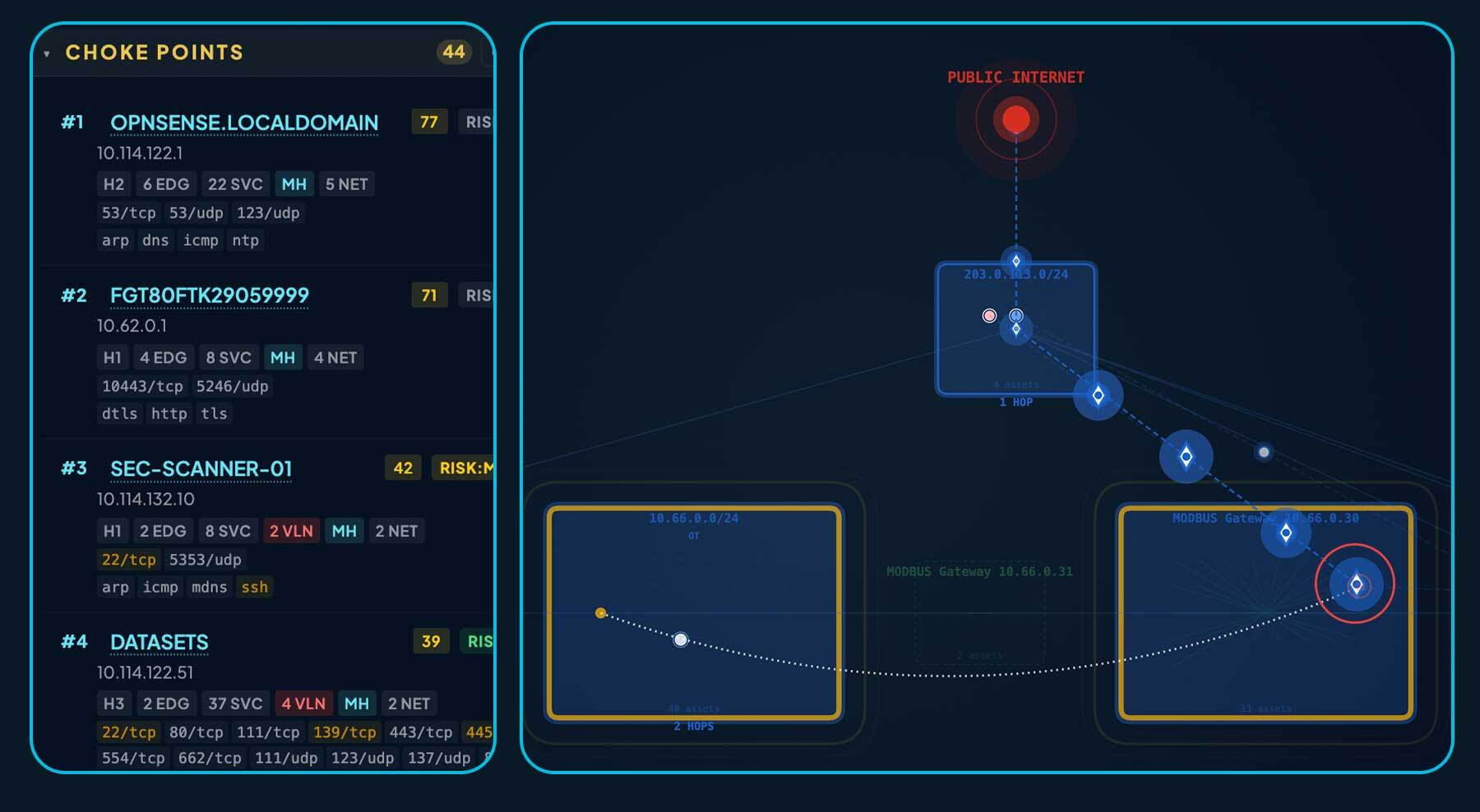
When a trace produces results, a Choke Points panel appears on the left rail. It lists the assets that sit on the largest share of source-to-target paths: the systems that, if removed or hardened, would disrupt the most attack paths.
How choke points are scored
Each candidate gets a Pivot Risk Score that combines connectivity signals with a heavy bias toward devices that are the only path into a non-IP backplane. Candidates sort by this score (descending), with ties broken by hop position and then by asset risk rank. Harden the top of the list first.
The score is built from these signals:
| Signal | Weight | Why it matters |
|---|---|---|
| Protocol-gateway pivot | +1000 (dominates the score) | A protocol gateway (BACnet, Modbus, EtherNet/IP CIP, KNXnet, S7, DNP3, …) is the only way to reach the assets on its backplane. Blocking it severs every downstream device, so it always ranks at the top. |
| Gateway pivot is also EOL or vulnerable | +200 | Adds a “replace this first” boost when a protocol-gateway pivot is end-of-life or carries known vulnerabilities. |
| Cluster count (subnets bridged) | +15 per additional cluster beyond the first | Multi-homed assets that bridge two or more subnets concentrate transit traffic; each extra subnet they touch increases their importance as a pivot. |
| Edge count on the trace | +2 per edge, capped at 50 edges | Counts how many distinct neighbors the asset talks to on the trace path. Higher fan-in / fan-out means more flows pass through it. |
| Network count (distinct networks) | +5 per additional network beyond the first, capped at 10 | Rewards bridging across separate networks (different CIDRs or routing domains) rather than just multiple subnets within the same network. |
| Multi-homed flag | +10 (one-time) | A small constant bump for any multi-homed asset, on top of the cluster / network counts above. |
| Service count | +1 per service, capped at 20 | Heavily-exposed assets (many open services) are higher-value pivots than single-purpose hosts. |
Candidates below a minimum bar are left out of the panel: an asset has to either bridge into a protocol gateway, have more than one neighbor on the trace, or be multi-homed across subnets. Protocol-gateway pivots are always kept regardless of degree because they are by construction the choke point for everything behind them. The list is capped at 100 entries so large traces stay readable.
Reading the panel
Each row shows the priority number (1 = highest), the asset’s name and main attributes, and its Pivot Risk Score. Protocol-gateway rows are highlighted and include the gateway protocol kind plus the count of backplane assets that depend on it. Click a row to focus the asset on the canvas and reveal its full details.
The Show only protocol gateways toggle filters the list to gateway pivots, and the count badge in the section header still shows how many entries are hidden so you know whether more candidates exist. You can export the full list, filtered or not, to CSV from the Export menu.
Exporting
The Export menu in the toolbar produces both image and graph-data formats from the current map view.
Images
- Current view (PNG) captures exactly what is on screen, at the rendered resolution.
- Full network (PNG) renders the whole topology to a high-resolution PNG, regardless of the current pan and zoom.
The 3D map exports the current rotated view as PNG.
Graph data
These formats include nodes, edges, subnet clusters, and node positions, suitable for loading into other graph tools:
- GraphML opens in Gephi, yEd, Cytoscape, NetworkX, and any GraphML-aware tool.
- GEXF is the Gephi-native format, with richer attribute typing than GraphML.
- GML opens in Cytoscape, R
igraph, and other classic tools. - Cytoscape JSON imports directly into Cytoscape Web and Cytoscape Desktop.
- Visio (VSDX) opens in Microsoft Visio.
Tabular data
- Assets (CSV) is a flat asset table of the current view (or the search-filtered subset when a search is active).
- Choke Points (CSV) has one record per choke-point asset for the active trace.
Sharing a view
The map’s URL captures the current filter, pan / zoom, theme, mask, search query, and any active trace. Copy the browser URL; recipients with access to the same organization see exactly the view you copied.