Atlassian Insight & Jira Service Management
This page covers the asset-enrichment integration that imports runZero asset data into Jira Service Management’s CMDB. To push runZero issues to Jira as tickets and sync changes back, use the Jira integration instead.
All runZero editions integrate with Jira Service Management through an import in Atlassian Insight, which loads runZero asset data into the CMDB.
Step 1: Export runZero asset data
Export data with the Export button in the runZero inventory, or with the Export API.
These sample Export API commands include the common export fields and omit the tags field. Replace the token ETxxx... with your account’s export token from the Inventory export API page.
For a CSV export, use this command (one line):
curl -o "assets.csv" -H "Authorization: Bearer ETxxxxxxxxxxxxxxxxxxxxxxxxxxxx"
  "https://console.runzero.com:443/api/v1.0/export/org/assets.csv"
For a JSON export, use this command (one line):
curl -o "assets.json" -H "Authorization: Bearer ETxxxxxxxxxxxxxxxxxxxxxxxxxxxx"
  "https://console.runzero.com:443/api/v1.0/export/org/assets.csv"
Step 2: Import data into Atlassian Insight
These steps need Jira Service Management Premium or Enterprise with Atlassian Insight installed.
-
In Jira Service Management, go to the Insight menu and click the + sign to create an object schema.
-
Name the object schema. This example calls it
Assets. -
Click … next to the object schema and choose Configuration.
-
Go to the Import tab.
-
Click Create Configuration.
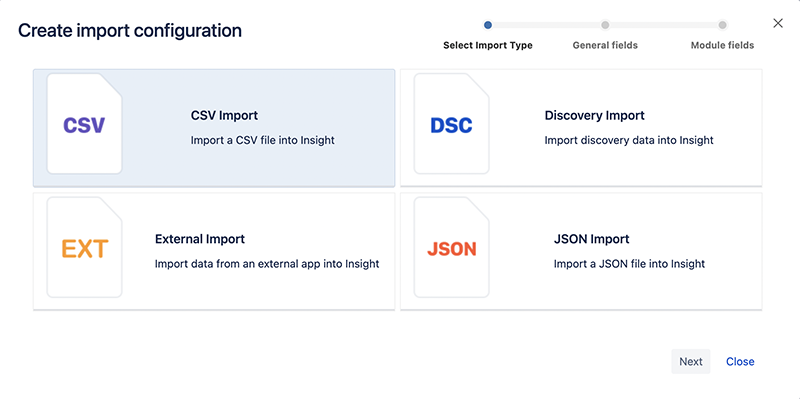
-
Choose CSV or JSON to match your export, and click Next.
-
Enter a name for the import.
-
In the Concatenator field, enter
\s.
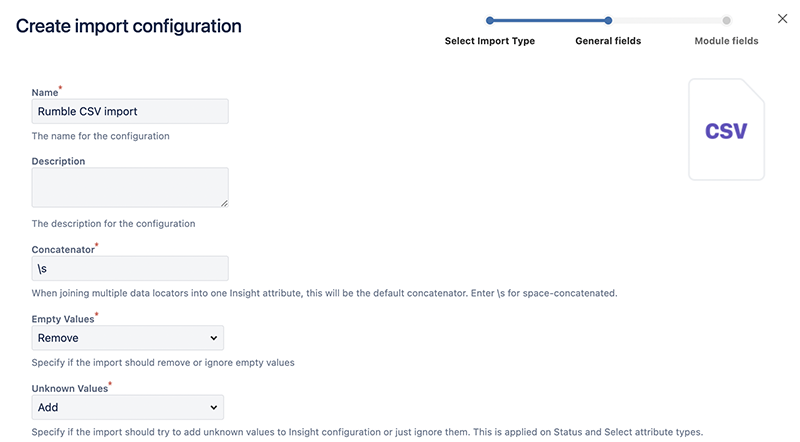
-
Scroll down and click Next.
-
Choose the file you exported from runZero.
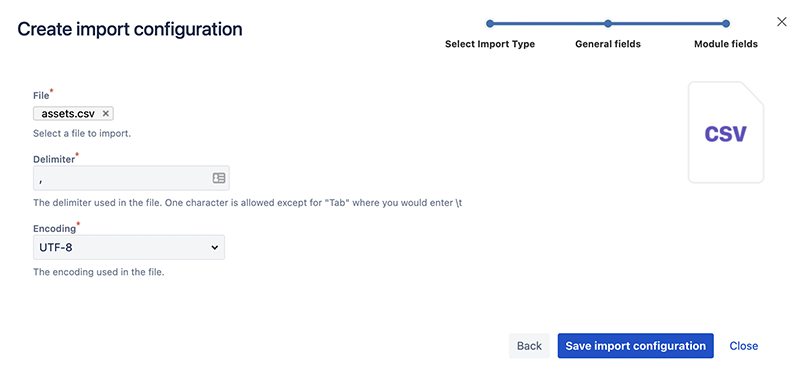
-
Click Save Import Configuration.
-
Click Create predefined Insight structure and wait for the task to finish.
-
Click Create predefined configuration and wait for the task to finish.
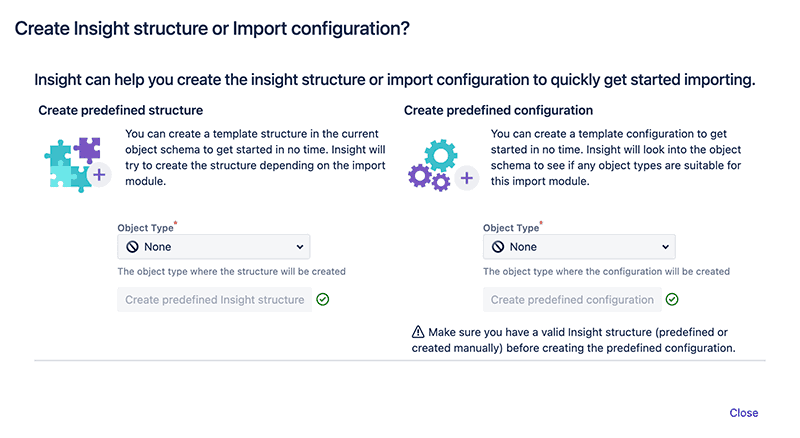
- Close the window. The page now lists your configured import. Click the settings cog and select Execute Import.

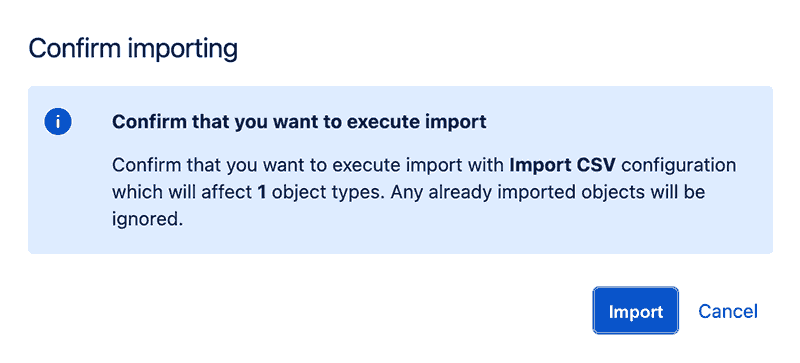
- Click Import.
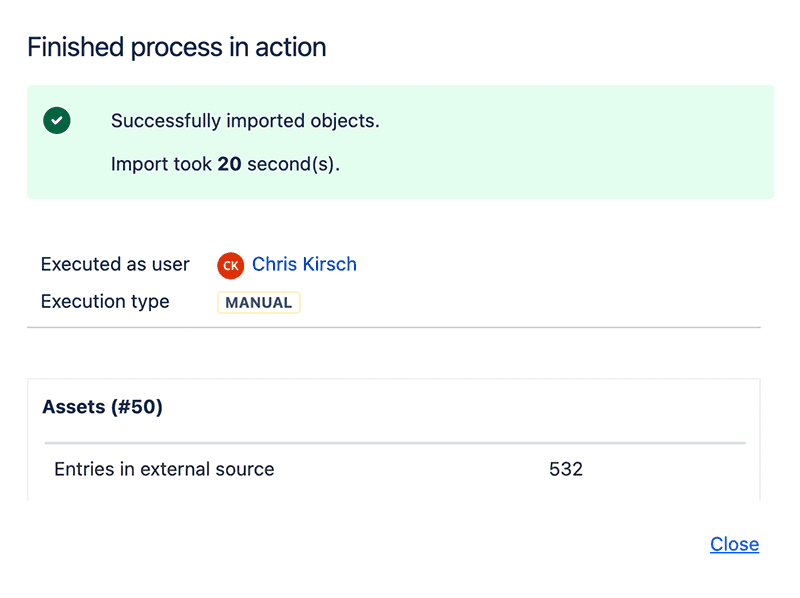
- When the import finishes successfully, close the window.
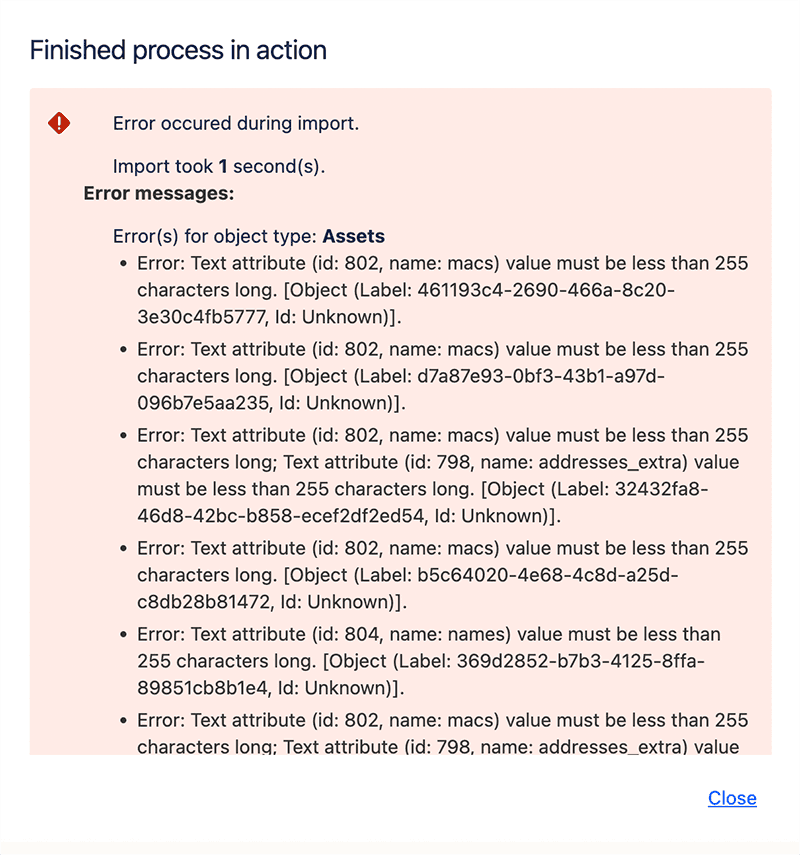
If you see the following error, one of your fields is longer than 255 characters. Trim the field to 255 characters or delete it so the import can succeed.
Step 3: View your imported assets
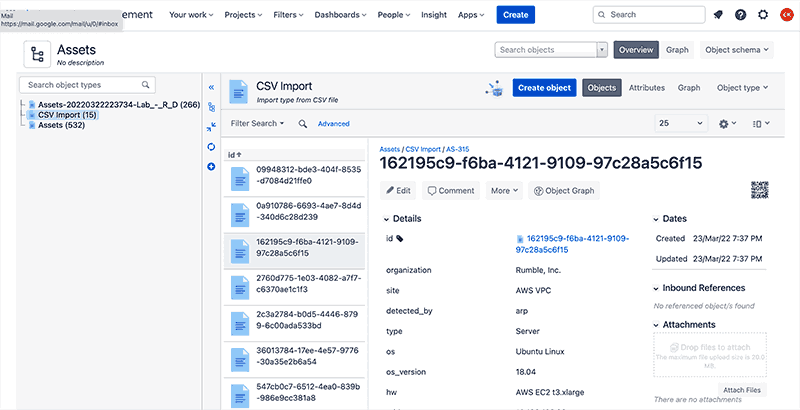
- In Jira Service Management, click Insights.
- Click your object schema.
- Click an asset to view its details.